


-
Products & Solutions TopProducts & Solutions

-
 Products & Solutions Top
-
Drives & Controls
-
UPS & Industrial Power Supply
-
Sensors & Measurements
-
Energy Management
-
Monitoring & Control System
-
Distributions & Controls
-
Transmission & Distribution
-
Transit System
-
Semiconductors
-
Energy
-
Food and Beverage Distribution
-
Service & Equipment Upgrades
-
Solutions
-
-
IR TopInvestor Relations
- GLOBAL > HMI > TELLUS and V-Server > Questions about > <V-Server> How can I start up V-Server together with the computer?
GLOBAL
<V-Server> How can I start up V-Server together with the computer?
<v-server>How can I start up V-Server together with the computer?
- Category :
Answer
Create a shortcut and register it as a startup option.
Procedure
Creating a shortcut
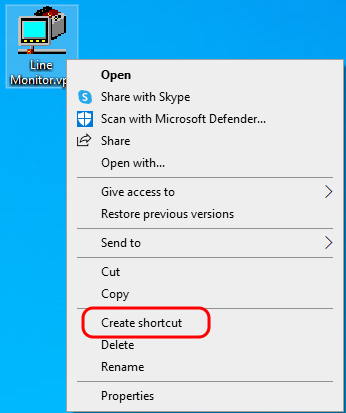
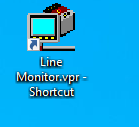
Right-click on the V-Server project file and create a shortcut.
Registering as a startup option
- Start Windows Explorer.
- Open the [Startup] folder and copy the created V-Server shortcut to the folder.
- Windows 11 / 10
C:\Users\(user name)\AppData\Roaming\Microsoft\Windows\Start Menu\Programs\Startup
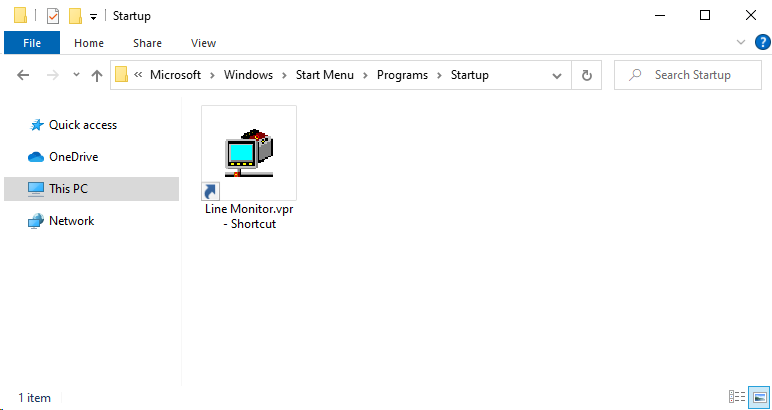
* If the [AppData] folder is not shown, select the [Hidden items] checkbox on the [View] tab.

- Windows 8.1/8/7/Vista
C:\Users\(user name)\AppData\Roaming\Microsoft\Windows\Start Menu\Programs\Startup
- Windows XP
C:\Documents and Settings\(user name)\Start Menu\Programs\Startup
This completes the necessary settings. V-Server will now start together with the computer.
<Supplementary information>
A delay time can be added to V-Server startup using Windows Task Scheduler. In this case, a shortcut does not need to be copied to the [Startup] folder.
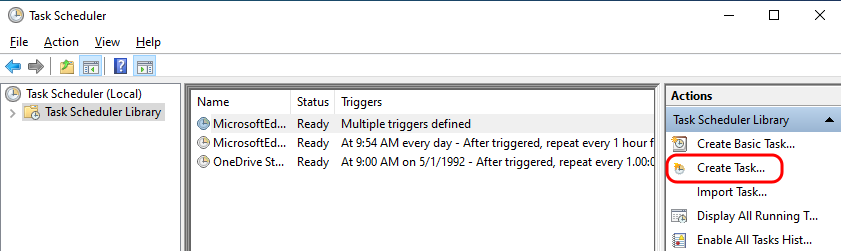
- Start Windows Task Scheduler and click [Create Task].
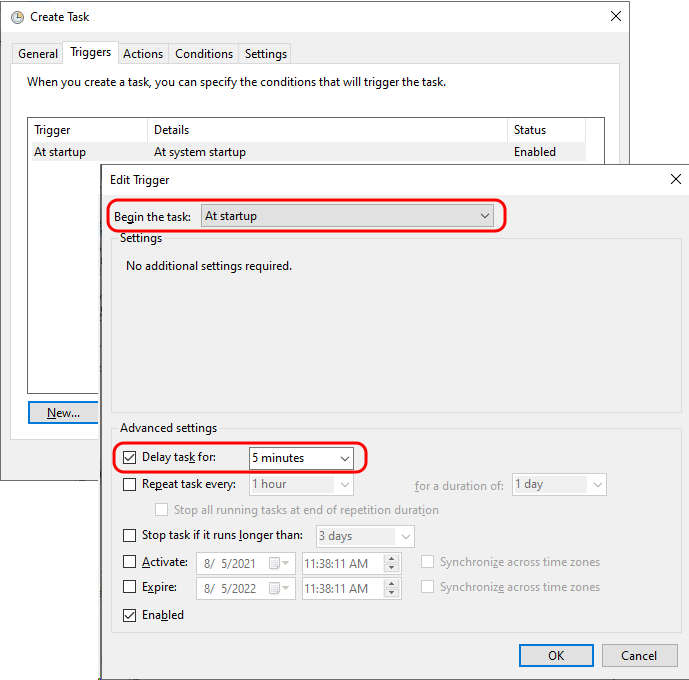
- Enter a name on the [General] tab window and register an execution timing on the [Triggers] tab window.
Example: Set a 5 minute delay after the computer starts up.
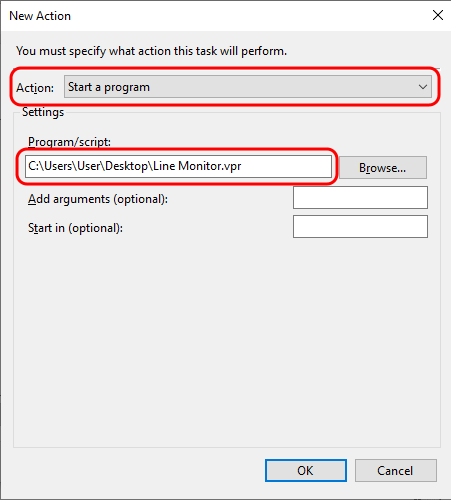
- Set [Start a program] for [Action] on the [Actions] tab window and set the link to the V-Server project file in the [Program/script] field.
This completes the configuration of settings.