
-
Products & Solutions TopProducts & Solutions

-
 Products & Solutions Top
-
Drives & Controls
-
UPS & Industrial Power Supply
-
Sensors & Measurements
-
Energy Management
-
Monitoring & Control System
-
Distributions & Controls
-
Transmission & Distribution
-
Transit System
-
Semiconductors
-
Energy
-
Food and Beverage Distribution
-
Service & Equipment Upgrades
-
Solutions
-
-
IR TopInvestor Relations
- GLOBAL > HMI > TELLUS and V-Server > Operation Troubles > I click a button on the screen in the TELLUS-Remote mode, but the data is not written to the MONITOUCH or PLC.
I click a button on the screen in the TELLUS-Remote mode, but the data is not written to the MONITOUCH or PLC.
I click a button on the screen in the TELLUS-Remote mode, but the data is not written to the MONITOUCH or PLC.
- Category :
Answer
Check the output device and set it correctly.
For system device ($s/$T):
It is not possible to write any value from remote screen to the monitored device.
PLC1-PLC8 device or I/O device:
Reset the write-protect setting.
The write-protect setting is made on V-Server.
User device ($u) or memory card device:
Reset the write-protect setting.
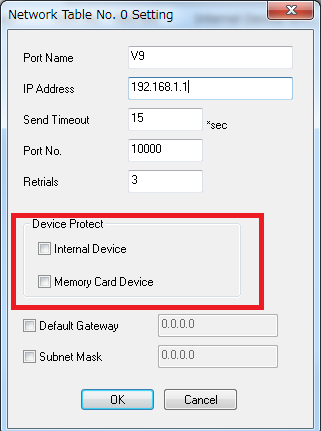
Also reset the memory protect setting from [Network table setting] > [Device protect] option in V-SFT.
Device types available for remote mode
| Device | Read | Write | Remarks | |
PLC1-PLC8 device I/O device |
Y | Y | Writing is not allowed if the read-only setting is specified for the PLC | |
| User device | $u/$L/$LD | Y | Y | |
| $T | N | N | Remote PC's internal memory | |
| System device | $s | N | N | Remote PC's internal memory |
| Memory card memory | Y | Y | ||
| Temperature controller memroy | Y | Y | Writing is not allowed if the read-only setting is specified for the PLC | |
V-Server: write protect setting
- Select the monitored device to which writing is impossible from V-Server.
- From the [Edit] menu, select [Remote Monitor Setting].
The [Remote Monitor Setting] dialog box is displayed. - Uncheck [Write Protect] box.
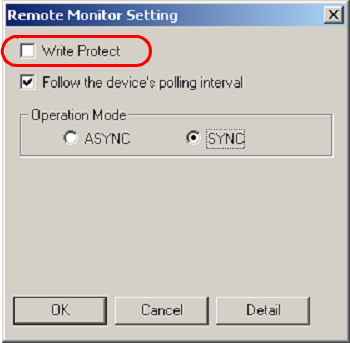
Write protect setting on the monitored device
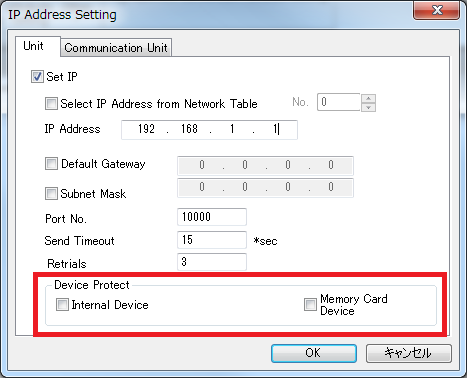
For V series
- Start V-SFT and open a screen program.
- Go to [System Setting]>[Ethernet Communication]>[Local IP address].
- Uncheck [Device Protect].
*When [Select IP Address from Network Table] is checked, go to [System Setting] > [Ethernet Communication] > [Network Table] to uncheck the Device Protect option.
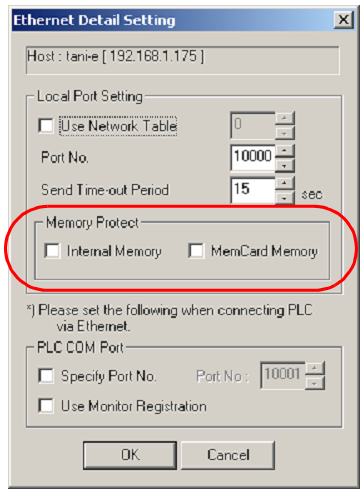
For TELLUS
- Open the [Option] dialog box.
- Click the [Detail Setting] button under [Ethernet].
The [Ethernet Detail Setting] dialog box is displayed. - Clear the checkmarks for [Memory Protect].