


-
Products & Solutions TopProducts & Solutions

-
 Products & Solutions Top
-
Drives & Controls
-
UPS & Industrial Power Supply
-
Sensors & Measurements
-
Energy Management
-
Monitoring & Control System
-
Distributions & Controls
-
Transmission & Distribution
-
Transit System
-
Semiconductors
-
Energy
-
Food and Beverage Distribution
-
Service & Equipment Upgrades
-
Solutions
-
-
IR TopInvestor Relations
- GLOBAL > HMI > V8/TS2060 series > Questions about > How to check the operation of screens without connecting to a PLC
GLOBAL
How to check the operation of screens without connecting to a PLC
How to check the operation of screens without connecting to a PLC
- Category :
Answer
Use the simulator.
The simulator allows you to verify screen operations without a PLC.
The simulator runs on a PC and simulates bit device ON/OFF action and word device data input.
Connection between PC and MONITOUCH
- Serial connection
- USB connection (V8/TS series, V706, V715 only)
- Ethernet connection (V8 series/TS2060i only)
[Step]
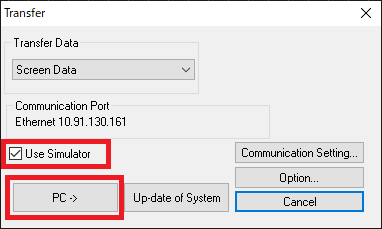
- Select [Transfer] → [Download] on the V-SFT editor, check [Use Simulator], and transfer screen data.
* In the case of V-SFT Ver.5, select [File] → [Transfer], and check [Use Simulator].
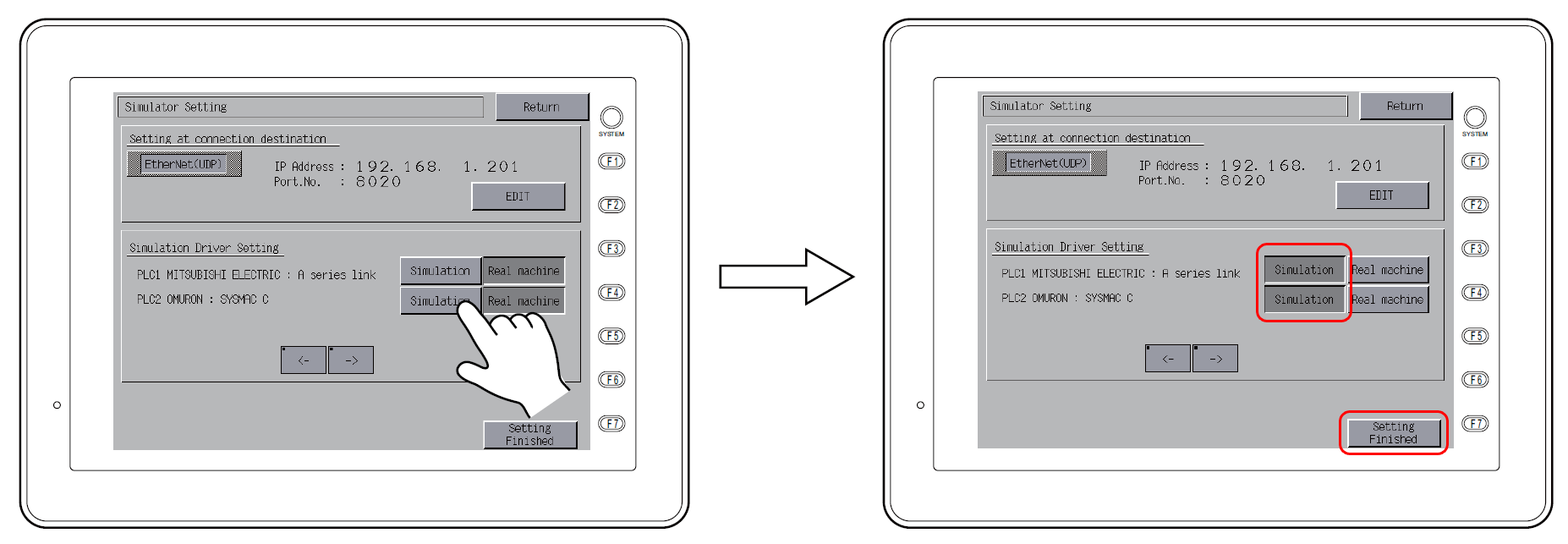
- In the case of the V8/TS series, configure the settings on the Simulator Setting screen.
For information on the settings, click here.
*These settings are not required in the case of the V7 series. Go to step 3.
- Click [Transfer] → [Simulate] on the V-SFT editor.
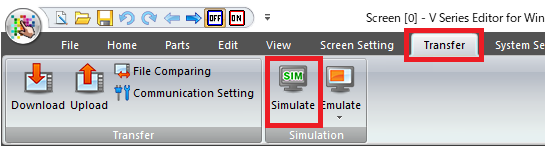
* In the case of V-SFT Ver.5, click the [SIM] icon or click [View] → [View] → [Simulate].
The [Simulator] window opens.
Simulator communication will start when the simulator has been launched.
During communication, [Communication] → [Start] is checked, and the [Communication] icon is depressed.
or 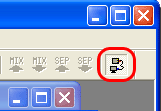
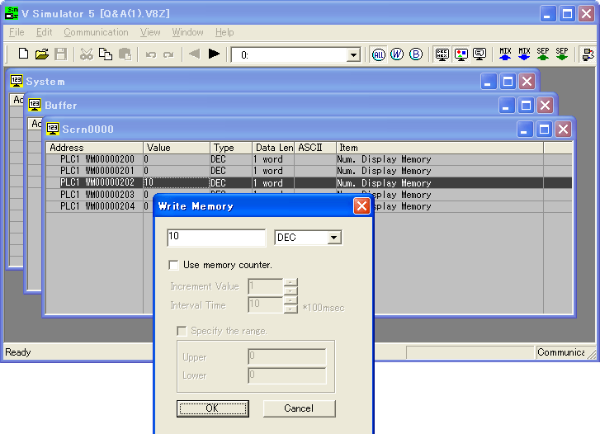
Double-click on a cell under [Value] to display the [Write Memory] dialog.
It is also possible to write values or to bit-write by clicking the ON/OFF icon.
|
When connecting MONITOUCH to a PLC after operations are verified, configure as below.
|

When communication is not successful:
If the simulator's communication settings are not correct, the V/TS series cannot communicate with a PC properly.
If not successful, click [Communication] → [End] on the simulator to abort communication. Be sure to select [File] → [Communication Setting] and check the settings.
<Serial communication>
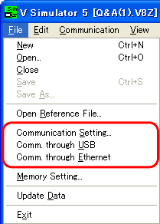
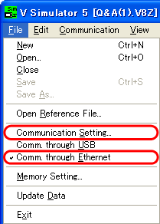
Select [File] on the simulator, check that [Comm. through USB] and [Comm. through Ethernet] are not checked, and click [Communication Setting].
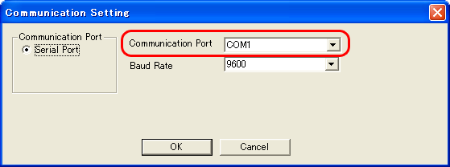
Set the COM number for [Communication Port]. Set the same COM number as that on the PC.
<USB communication>
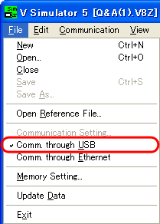
Select [File] on the simulator and check [Comm. through USB].
<Ethernet communication>
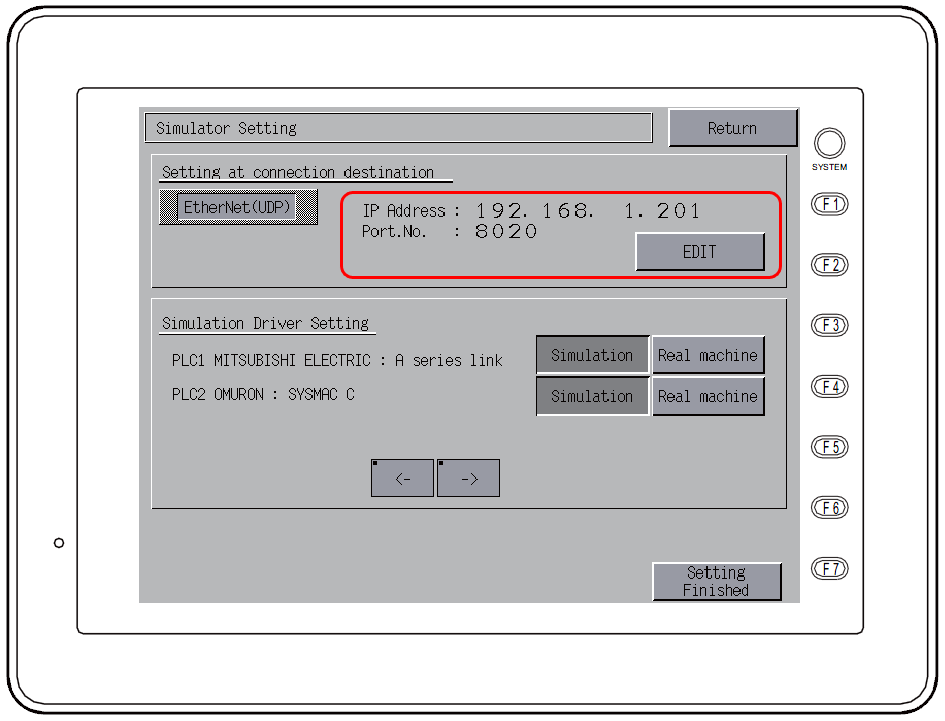
- Register the IP address of the PC on the Simulator Setting screen on MONITOUCH.
- Select [File] on the simulator, check that [Comm. through Ethernet] is checked, and click [Communication Setting].
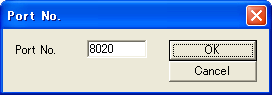
Set the port number.
The default port No. is 8020.
If changed, set the changed port number on the Simulator Setting screen on MONITOUCH.
For information on the settings on MONITOUCH, click here.