-
Products & Solutions TopProducts & Solutions

-
 Products & Solutions Top
-
Drives & Controls
-
UPS & Industrial Power Supply
-
Sensors & Measurements
-
Energy Management
-
Monitoring & Control System
-
Distributions & Controls
-
Transmission & Distribution
-
Transit System
-
Semiconductors
-
Energy
-
Food and Beverage Distribution
-
Service & Equipment Upgrades
-
Solutions
-
-
IR TopInvestor Relations
Ethernet Error:205
Ethernet Error:205
- Category :
-
- GLOBAL > HMI > V8/TS2060 series > Error
Answer
This error occurs when a TCP connection cannot be established when connecting to a network device using TCP/IP.
<Cause>
- The LAN cable is not connected correctly.
Or power to the connected device is not turned on.
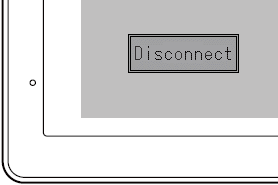
- "Disconnect" is displayed at the bottom left of the Main Menu → Ethernet screen.
- Communication settings (IP address, port number, etc.) on the TSi/V series
do not match those of the connected device.
<Solutions>
Case A
- Check if the LAN cable is connected to the LAN connector correctly.
- Turn power to the connected device off and on again.
Case B
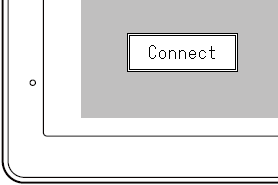
"Disconnect" displayed at the bottom left of the Main Menu → Ethernet screen must be changed to "Connect".
- Depending on whether the hub is used or not, the cable type to use varies.
Check the cable in use.
- With hub: Straight cable
- Without hub: Cross cable
- When a hub is used, check the LED that indicates the hub link condition.
If not lit, check the cable, and insert it into another empty port on the hub.
- Turn on the hub again.
- Check for errors in setting, such as exchanged data between the subnet mask and default gateway of the TSi/V series.
Case C
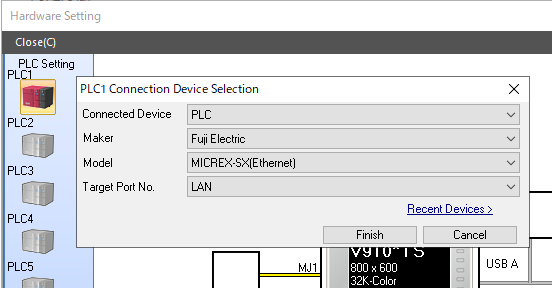
- Check that the [Maker], [Model], and [Target Port No.] settings of the connected device are configured correctly in the screen program.
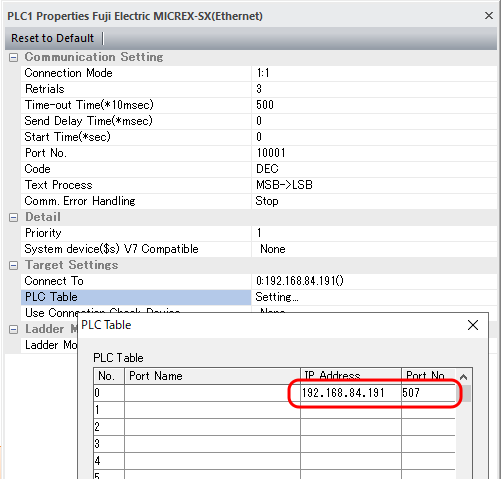
- Check that the IP address, port number, and other communication settings match on both the connected device and the TSi/V series unit.
Example) MICREX-SX (Ethernet)
How to check the manufacturer and model of the connected device:
Double-click on [PLC Setting] located at [System Setting] → [Hardware Setting].
How to check the communication settings:
Click [System Setting] → [Hardware Setting] → [PLC Properties] → [PLC Table] → [Setting].