


-
Products & Solutions TopProducts & Solutions

-
 Products & Solutions Top
-
Drives & Controls
-
UPS & Industrial Power Supply
-
Sensors & Measurements
-
Energy Management
-
Monitoring & Control System
-
Distributions & Controls
-
Transmission & Distribution
-
Transit System
-
Semiconductors
-
Energy
-
Food and Beverage Distribution
-
Service & Equipment Upgrades
-
Solutions
-
-
IR TopInvestor Relations
"The port cannot be opened."
"The port cannot be opened."
- Category :
-
- GLOBAL > HMI > V8/TS2060 series > Error
Answer
This error may be displayed on the configuration software V-SFT when data is transferred.
Possible causes and solutions are given below.
[When the transfer cable "USB" is used]
<Causes>
- The USB cable is not connected correctly.
- The USB driver is not installed.
The USB ladder transfer function is being used but the following action is not taken (TS/V8 series only).
c-1.The Main Menu screen is not displayed.
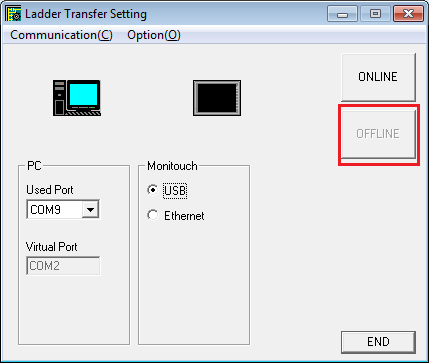
c-2."Ladder Transfer Setting" is not offline.
<Solutions>
- Check if the USB cable is connected correctly to the U-B port of the TS/V series.
- Open the [Device Manager] on the PC, and check if "Operation Panel - Operation Panel USB Driver" exists.
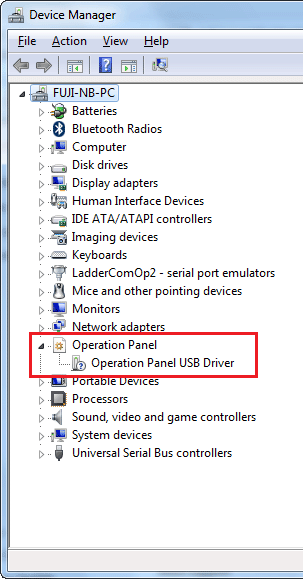
If this item is not found or "Other Device" or a mark other than shown above is displayed, the USB driver is not recognized properly.
Refer to here, and transfer data again.
- Display the Main Menu screen.
(Ladder communication is enabled on the RUN screen only.)
Open "Ladder Transfer Setting", press [OFFLINE].
The screen changes as follows when [OFFLINE] is pressed.
[When the transfer cable "V-CP" is used]
<Causes>
- The COM port to be used for transfer is already being used by another application.
- A COM port that does not exist on the PC is selected.
<Solutions>
- Check if any application that uses the COM port is running.
If running, close the application.
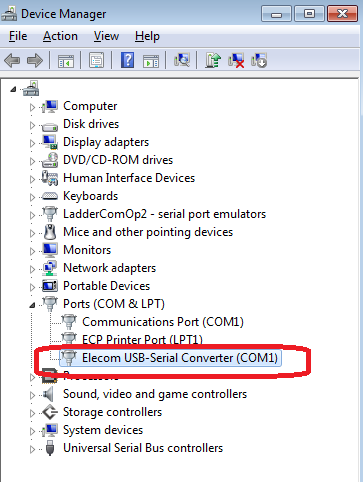
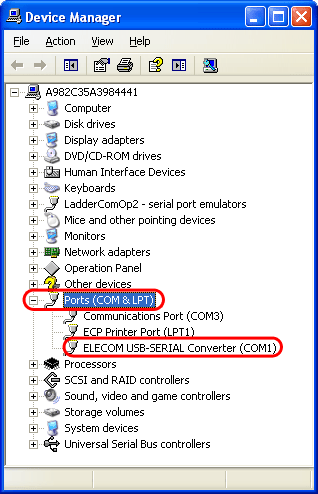
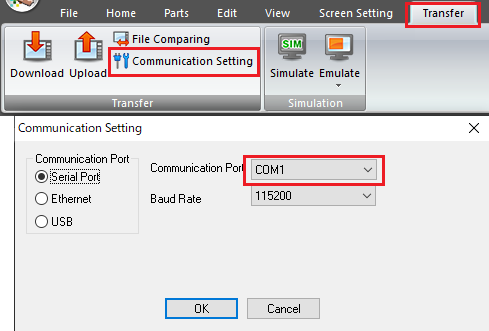
Check the COM port number using the Device Manager of the PC, and set this port number for [Communication Port] on the [Transfer] [Communication Setting] dialog.
[COM port on the PC]
Example: When USB-serial converter is used:
- Windows Vista/ 7/ 8/ 8.1/ 10
- Windows XP
[Communication Setting dialog]
- Windows Vista/ 7/ 8/ 8.1/ 10