

-
Products & Solutions TopProducts & Solutions

-
 Products & Solutions Top
-
Drives & Controls
-
UPS & Industrial Power Supply
-
Sensors & Measurements
-
Energy Management
-
Monitoring & Control System
-
Distributions & Controls
-
Transmission & Distribution
-
Transit System
-
Semiconductors
-
Energy
-
Food and Beverage Distribution
-
Service & Equipment Upgrades
-
Solutions
-
-
IR TopInvestor Relations
- GLOBAL > HMI > V10/V9 series > Questions about > How to remove storage devices safely from the V10/V9 series unit
GLOBAL
How to remove storage devices safely from the V10/V9 series unit
How to remove storage devices safely from the V10/V9 series unit
- Category :
Answer
There are two methods of removing storage devices safely.
[How to remove storage devices on the system menu]
- Press [System Menu] > [Storage Removal].
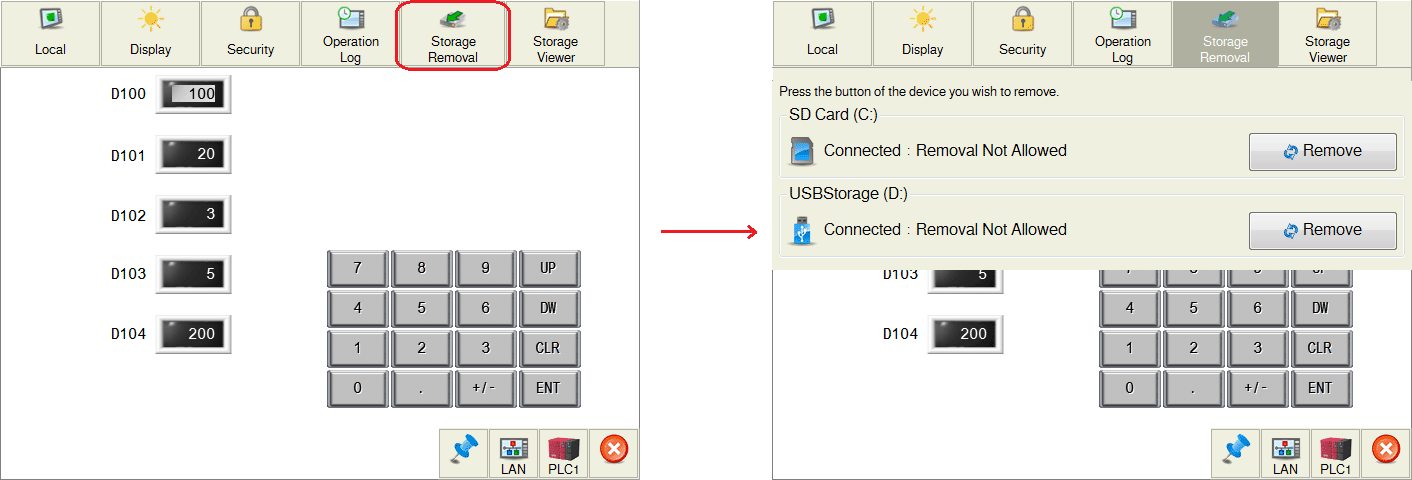
- Press the [Remove] switch under [SD Card (C:)] or [USB Storage (D:)].
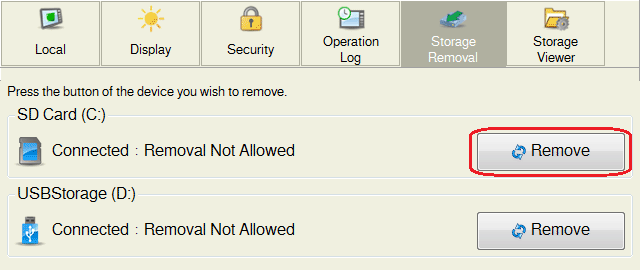
- Remove the storage device after the displayed message changed to [Connected: Removal Allowed].
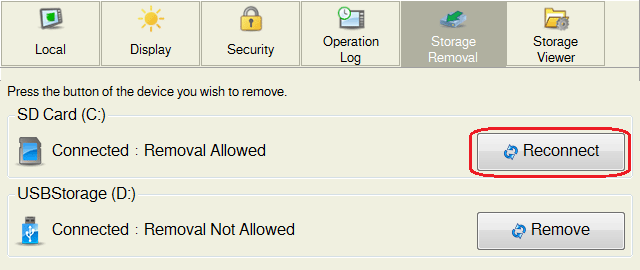
- In order to reconnect a storage device to the V10/V9 series unit after the storage device removal, press [Storage Removal] > [Reconnect] in the system menu.
The displayed message [Connected: Removal Not Allowed] is a sign that the storage device has been reconnected.
[How to remove storage device by pressing [Storage Removal] switch]
- Place a switch and set its function as [Storage Removal].
- Press the switch from Step 1 on the V10/V9 series unit.
- The switch gets ON after access to the storage devices (both SD card and USB flash drive) stops. Remove the storage devices.
(Switch blinks while writing the data.) If you reconnect a storage device to the V10/V9 series unit after the storage
removal, press and turn the switch off.*[Storage Removal] switches stop access to all storage devices (SD card and USB flash drive) connected to the V10/V9 series unit.
If you want to remove SD card or USB flash drive individually, use the method of [How to remove storages on the system menu].