
-
Products & Solutions TopProducts & Solutions

-
 Products & Solutions Top
-
Drives & Controls
-
UPS & Industrial Power Supply
-
Sensors & Measurements
-
Energy Management
-
Monitoring & Control System
-
Distributions & Controls
-
Transmission & Distribution
-
Transit System
-
Semiconductors
-
Energy
-
Food and Beverage Distribution
-
Service & Equipment Upgrades
-
Solutions
-
-
IR TopInvestor Relations
- GLOBAL > HMI > V10/V9 series > Operation Troubles > I want to show a multi-overlap using a button but the overlap does not appear.
I want to show a multi-overlap using a button but the overlap does not appear.
I want to show a multi-overlap using a button but the overlap does not appear.
- Category :
Answer
Check the following points:
<Causes>
- Multi-overlap (icon)
 is not place on the screen.
 - Multi-overlap setting (icon) is not correct.
- Macro commands are not correct.
- To show multi-overlap using PLC command, please click here .
- To show multi-overlap using macro command, please click here .
<Measures>
- Go to [Home] or [Parts] > [Multi-overlap] and place a multi-overlap icon.
This icon still works when you place it outside editing area of the screen.
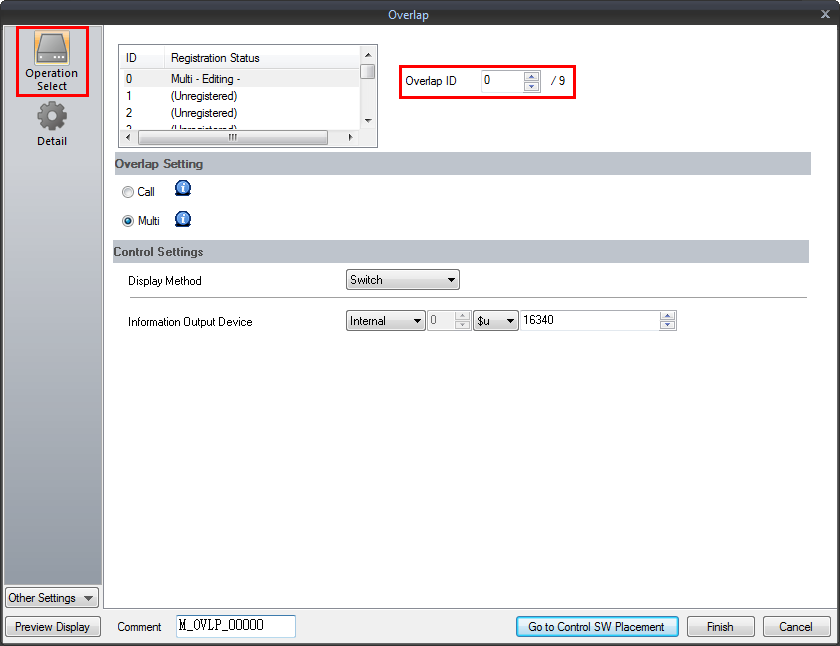
- Double-click the multi-overlap icon and check the overlap ID setting in the [Operation Select] dialog box.
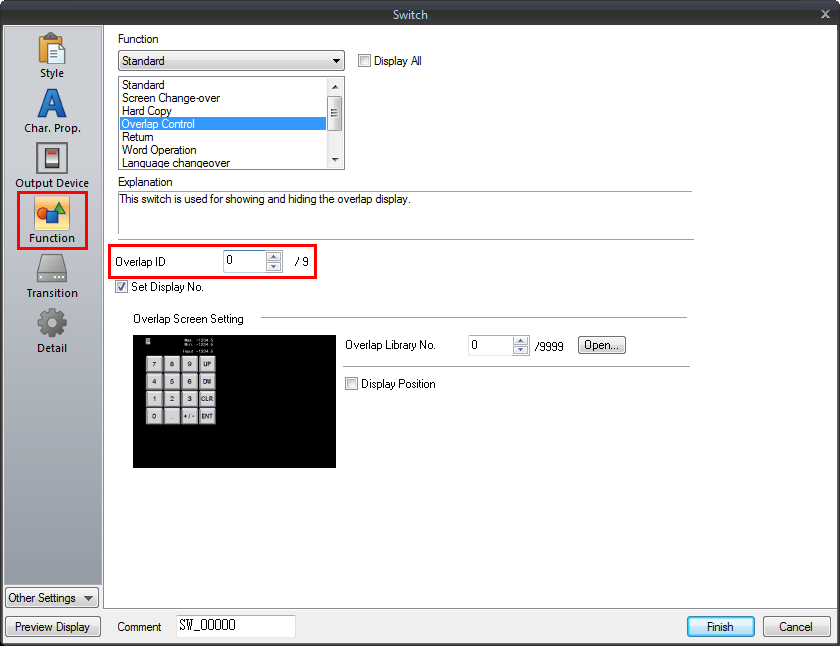
Double-click a switch and set the same ID number as the ID checked in the multi-overlap icon.
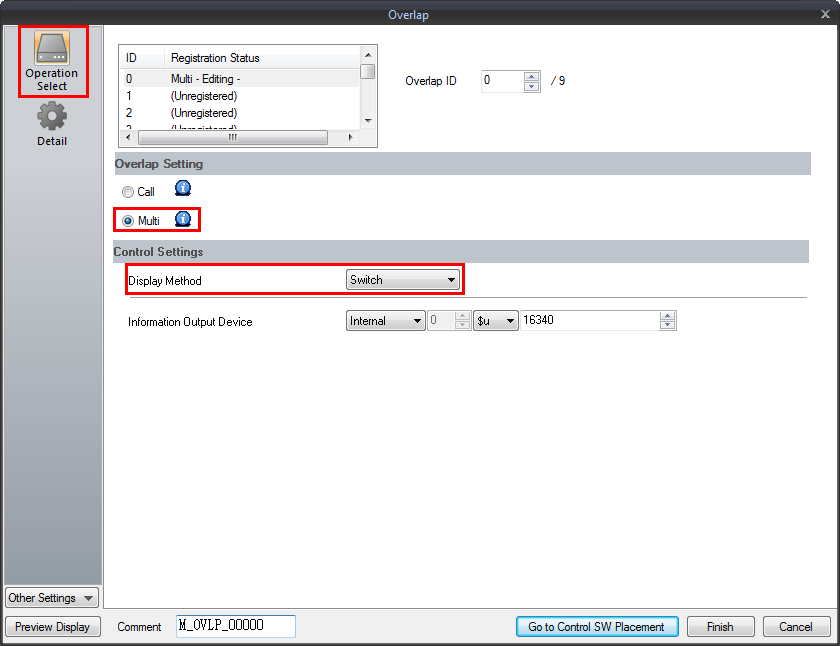
- Double-click the multi-overlap icon and select [Multi] from [Overlap Setting] and [Switch] from [Display Method].
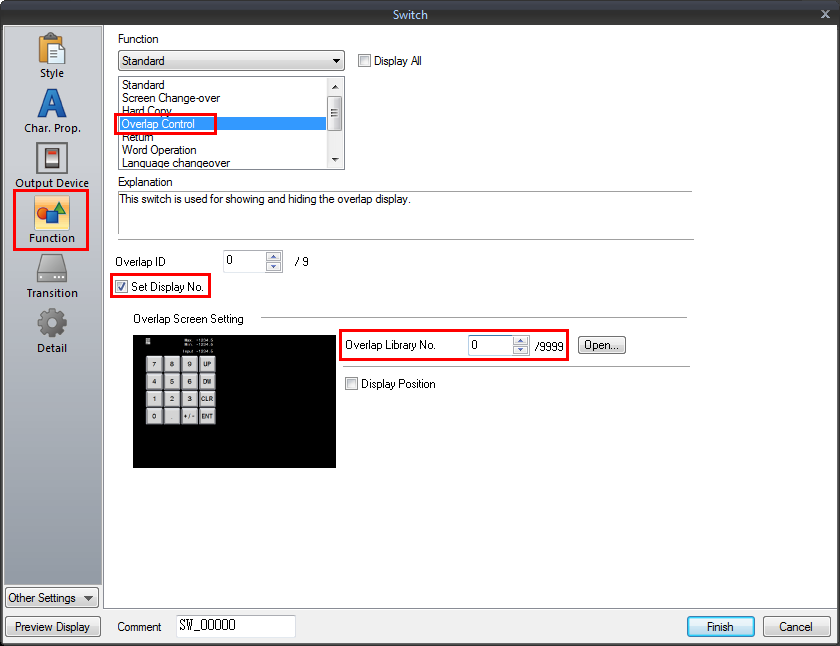
- Double-click a switch and set the [Function] to [Overlap Control], check [Set Display No.] option box, and enter the overlap library number you wish to call.