
-
Products & Solutions TopProducts & Solutions

-
 Products & Solutions Top
-
Drives & Controls
-
UPS & Industrial Power Supply
-
Sensors & Measurements
-
Energy Management
-
Monitoring & Control System
-
Distributions & Controls
-
Transmission & Distribution
-
Transit System
-
Semiconductors
-
Energy
-
Food and Beverage Distribution
-
Service & Equipment Upgrades
-
Solutions
-
-
IR TopInvestor Relations
- GLOBAL > HMI > V10/V9 series > Error > Communication Error "Simulator: Timeout", "Simulator: Link down"
GLOBAL
Communication Error "Simulator: Timeout", "Simulator: Link down"
Communication Error "Simulator: Timeout", "Simulator: Link down"
- Category :
-
- GLOBAL > HMI > V10/V9 series > Error
Answer
This error is displayed on the V series when simulator communication is not established correctly between the V series and the PC.
[Communication with a PLC]
The communication setting is configured not with a PLC but with the simulator.
Configure settings for communication with a PLC in Local mode on the V series, or transfer screen data that does not require a simulator.
<Solutions>
Setting change procedure in Local mode
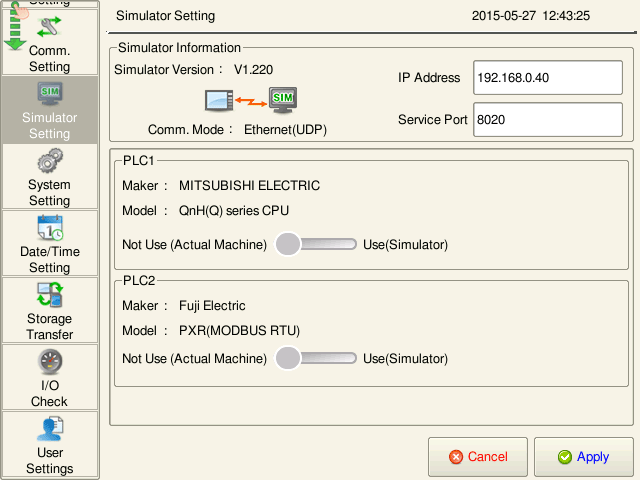
- Switch to Local mode on the V series.
- Press [Simulator Setting] in the menu icons to display the simulator settings. Select [Not Use (Actual Machine)] and press the [Apply] switch.
- Press [RUN] in the menu icons to switch to the RUN screen.
Configuration procedure for not using the simulator from the configuration software
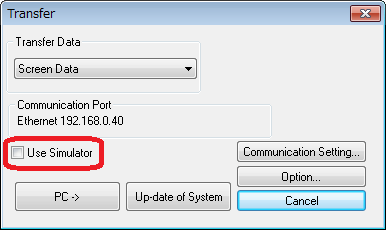
- Click [Transfer] -> [Download] to display the [Transfer] dialog.
- Uncheck [Use Simulator], and click [PC->] to transfer the screen data again.
[Communication with simulator]
The simulator is not running properly or communication is not established between the PC and the V series.
<Solutions>
- Switch to Local mode and select [Simulator Setting] -> [Use] and press the [Apply] switch.
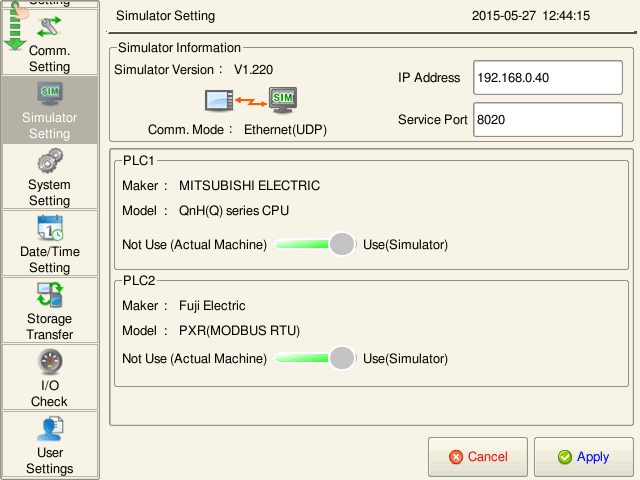
* When connecting the V series with a PC via Ethernet, the IP address of the PC must be specified at [Simulator Information].
- Press [RUN] in the menu icons to switch to the RUN screen.
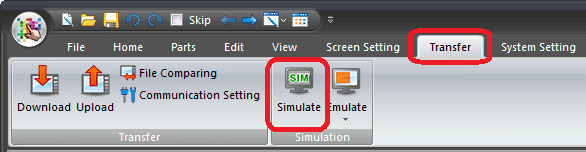
- Click [Transfer] -> [Simulator] on the configuration software to start the simulator.
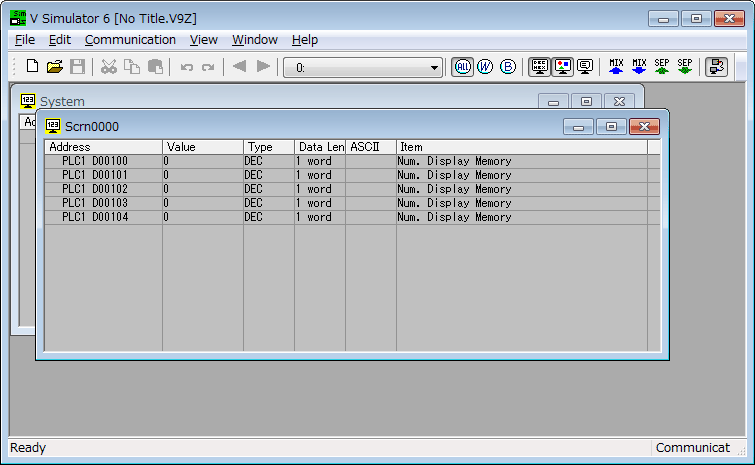
- The simulator starts up. Communication with the V series will start at the same time. Addresses related to the screen data currently open on the editor will be displayed on the simulator automatically.
When communication is not possible:
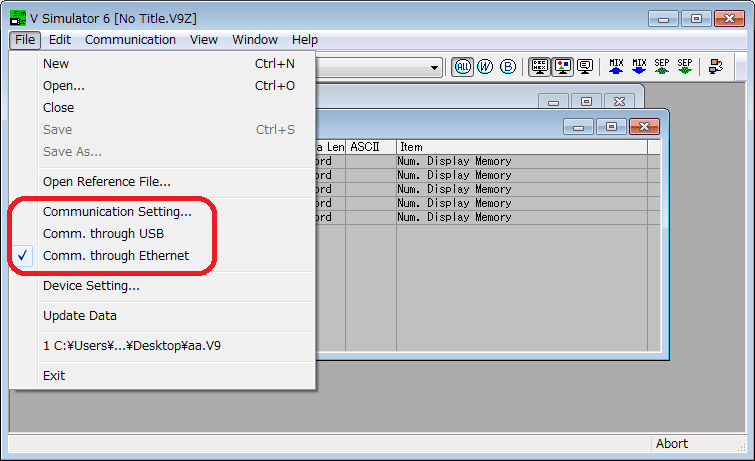
Configure settings for communication between the PC and the V series from the [File] menu. For more information, refer to "How to check the operation of screens without connecting to a PLC."