- GLOBAL > HMI > V8/TS2060 series > Questions about > How to search for device memory addresses specified for items used on the screen
How to search for device memory addresses specified for items used on the screen
How to search for device memory addresses specified for items used on the screen
- Category :
Answer
Search by the following procedure.
To search for a specific device
- Click [Tool] -> [Search] -> [Device].
- Check [Device Designation], specify the range of device memory addresses and click [OK].
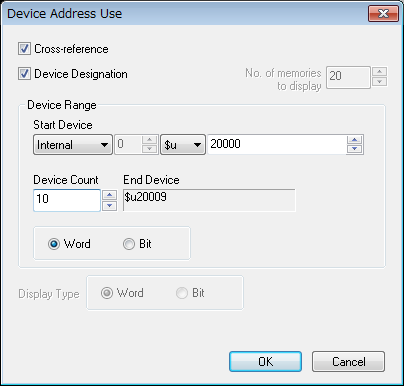
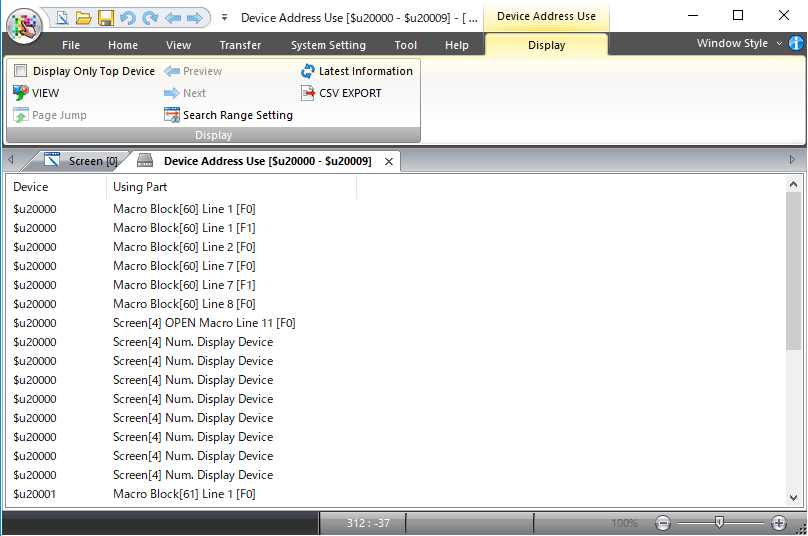
The search results are displayed.
[Cross-reference]
・Checked
・Unchecked
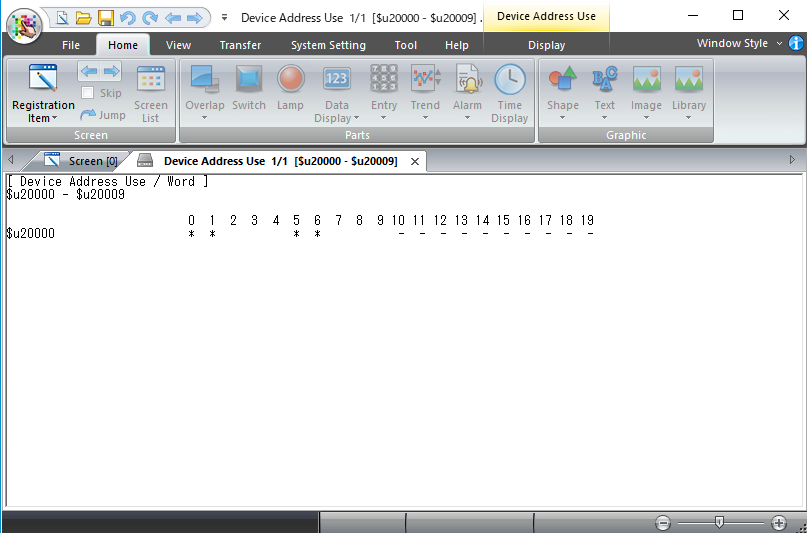
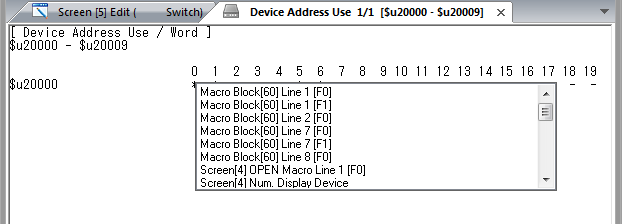
* Move the cursor to "*" to view the device memory address.
Double-click to view the position used.
Example: Indication of the used position
To search entire screen program for device memory addresses in use
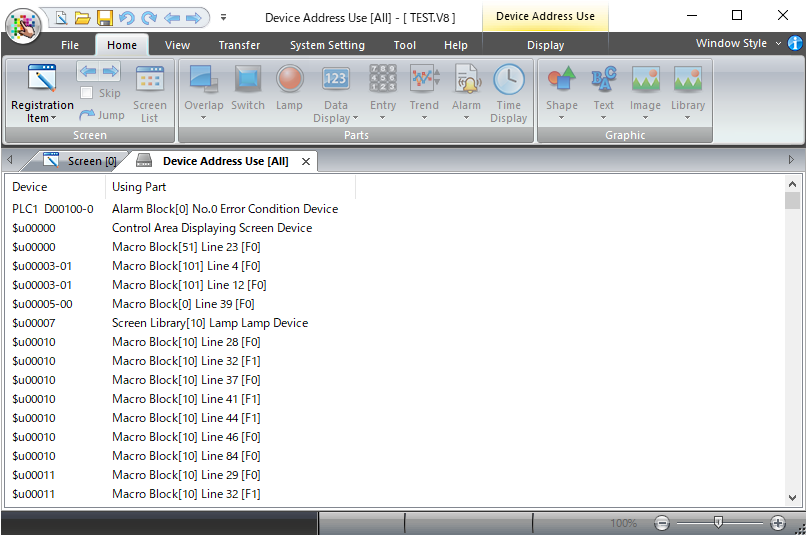
- Click [Tool] -> [Search] -> [Device].
- Uncheck [Device Designation], and click [OK].
The search results are displayed.
The results are displayed in the same format as when [Cross-reference] is checked.
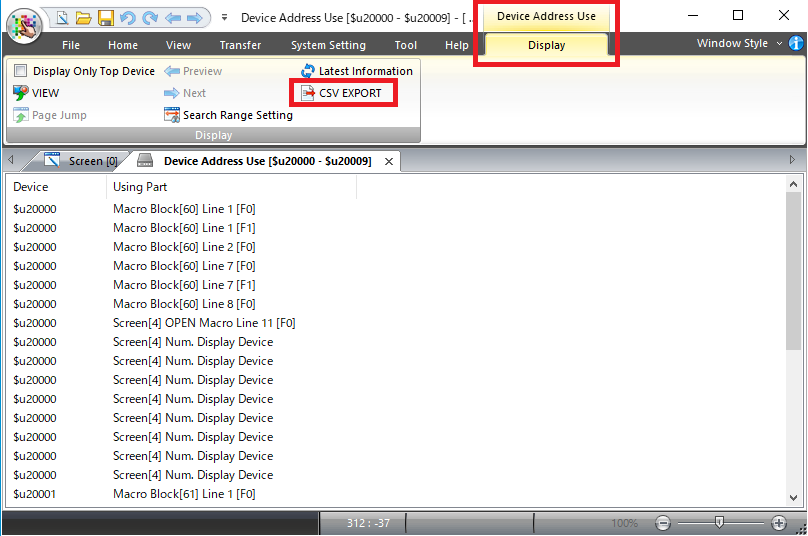
CSV output of search results
Follow the steps below to output the search results to a CSV file.
【Operation】
1. Click "CSV EXPORT" on the search result (Device Address Use) screen.
(Or the same operation can be performed with the shortcut keys "Ctrl" + "L" keys.)
2. Select a file name and save destination and click [Save].
【Remarks】
・ The above CSV export is disabled if "Cross-Reference" is not checked when
searching for a device. (CSV export is arailable only when "Cross-reference"
is checked.)
To display device usage in a table format (Ver. 6.1.1.0 or later)
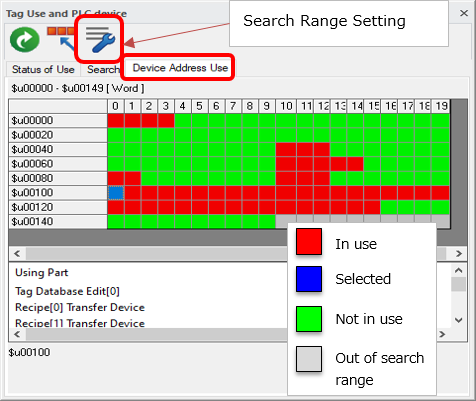
- Click [Tool] -> [Search] -> [Tag and Device Use].
- Select [Device Address Use].
- Specify the range of device memory addresses and click [OK].
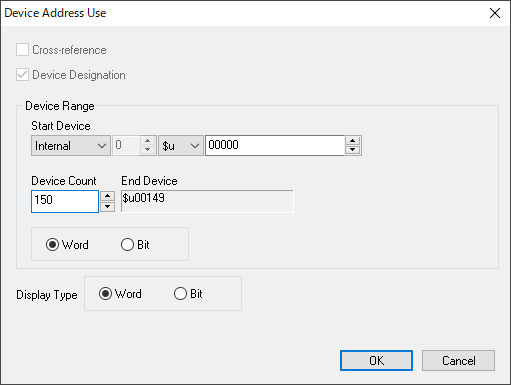
- Search results are displayed in a table format.