- GLOBAL > HMI > V10/V9 series > Questions about > How to store screen data in a storage device
How to store screen data in a storage device
How to store screen data in a storage device
- Category :
Answer
Two methods are available. Follow the steps below.
[Storing data from a PC (V-SFT) to a storage device]
Click [File] -> [Storage Manager].
Specify the drive where the storage device is inserted and click [OK].
The [Storage Manager] window is displayed.
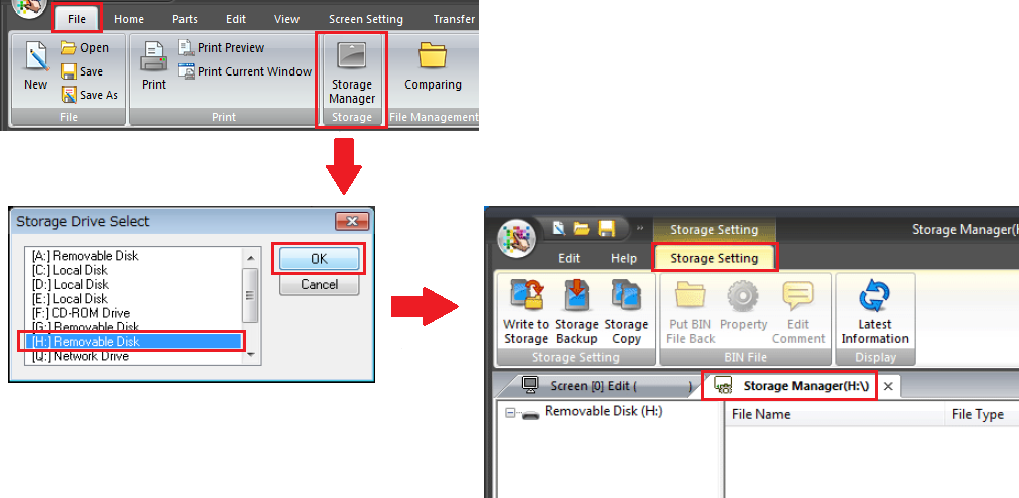
Click [Write to Storage].
Select the screen data from [Open] and click [OK].
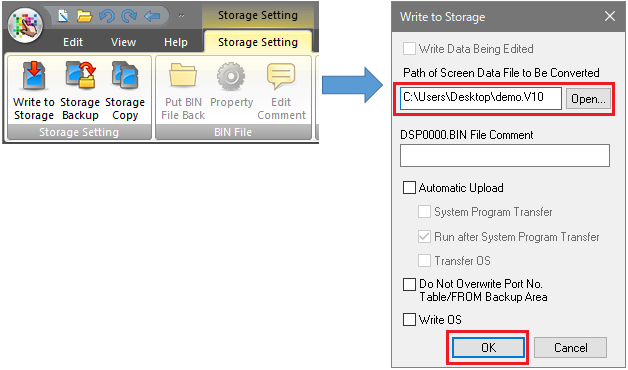
* When writing screen data that is being edited, check [Write Data Being Edited].Writing starts.
Screen data will be written as a BIN file in the DSP folder in the access folder (default: EXT0000) on the storage device.
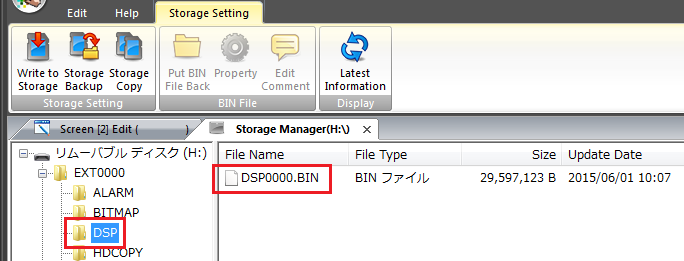

If the screen data file is copied onto the CF card, the V series cannot recognize the file.
Be sure to write data as described above.
[Storing data from the V series to a storage device]
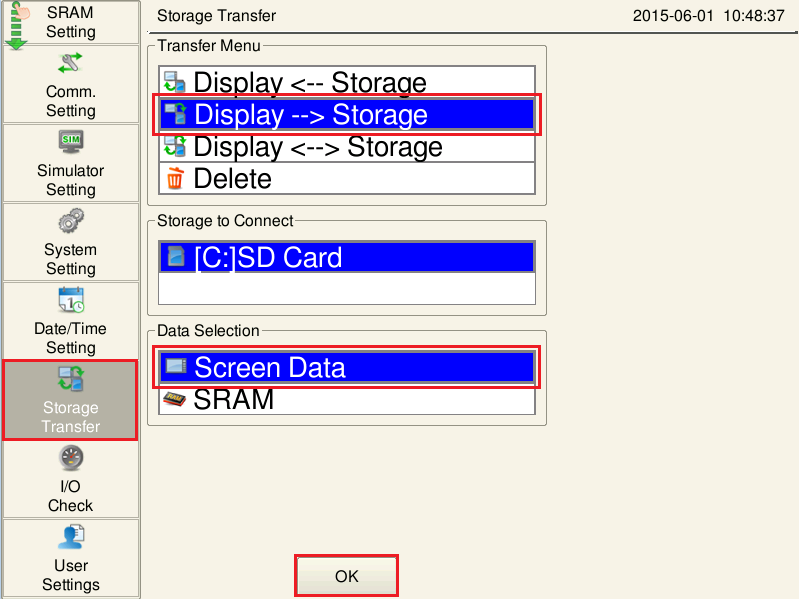
Switch to Local mode and press [Storage Transfer] in the menu icons.
The Storage Transfer screen is displayed.
Configure the following settings and press [OK].
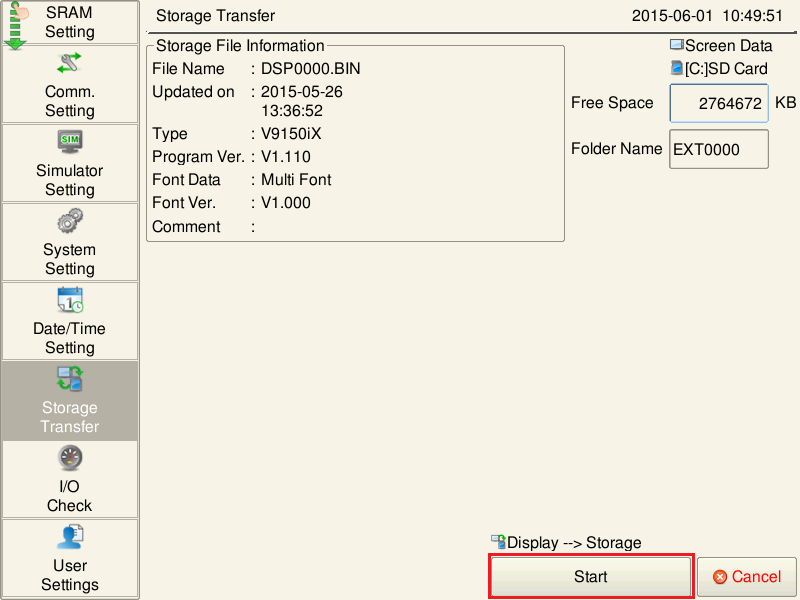
- [Transfer Menu: Display --> Storage]
- [Data Selection: Screen Data]
The following screen is displayed. Press [Start].
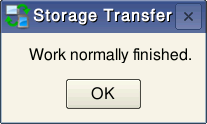
- When the data has been transferred successfully, the [Work normally finished.] dialog is displayed.
Press the [OK] switch.
Screen data will be written as a BIN file in the DSP folder in the access folder (default: EXT0000) on the storage device.