


-
Products & Solutions TopProducts & Solutions

-
 Products & Solutions Top
-
Drives & Controls
-
UPS & Industrial Power Supply
-
Sensors & Measurements
-
Energy Management
-
Monitoring & Control System
-
Distributions & Controls
-
Transmission & Distribution
-
Transit System
-
Semiconductors
-
Energy
-
Food and Beverage Distribution
-
Service & Equipment Upgrades
-
Solutions
-
-
IR TopInvestor Relations
- GLOBAL > HMI > V8/TS2060 series > Questions about > How to hide overlap parts from the screen while editing the base screen
How to hide overlap parts from the screen while editing the base screen
How to hide overlap parts from the screen while editing the base screen
- Category :
Answer
Two methods are available. Follow the steps below.
[Method 1: Right-click menu]
Display the right-click menu on the screen, and click [Overlap Display] → [ALL] or the number of the overlap part to hide. The overlap part(s) are hidden.
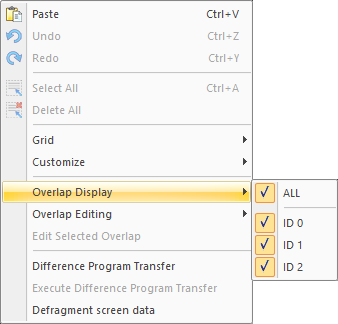
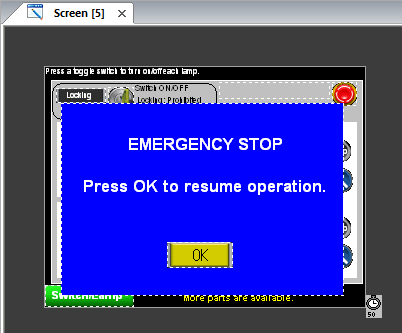
Example: To display/hide the blue overlap part:
- Show
- Hide
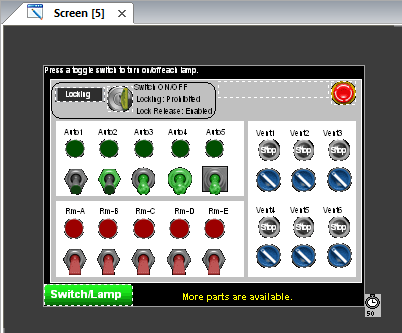
The overlap part is hidden and screen editing becomes available.
[Method 2: Display environment settings]
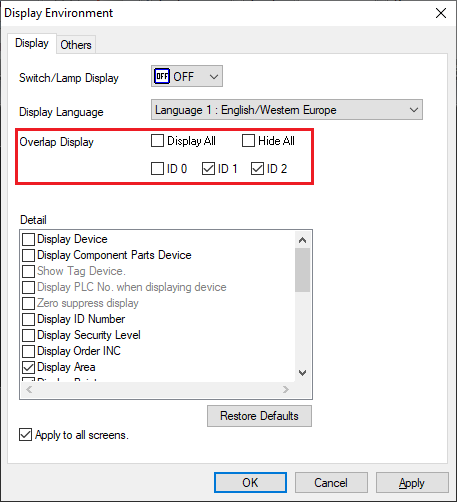
Select [View] → [Display Environment] → [Display] tab window, and uncheck the number of the overlap part to hide next to [Overlap Display]. The overlap part(s) are hidden.
Example: Overlap No. 0 to be hidden
For a display example, refer to [Method 1: Right-click menu].