


-
Products & Solutions TopProducts & Solutions

-
 Products & Solutions Top
-
Drives & Controls
-
UPS & Industrial Power Supply
-
Sensors & Measurements
-
Energy Management
-
Monitoring & Control System
-
Distributions & Controls
-
Transmission & Distribution
-
Transit System
-
Semiconductors
-
Energy
-
Food and Beverage Distribution
-
Service & Equipment Upgrades
-
Solutions
-
-
IR TopInvestor Relations
- GLOBAL > HMI > V10/V9 series > Questions about > I want to import a image file to place it on a screen.
I want to import a image file to place it on a screen.
I want to import a image file to place it on a screen.
- Category :
Answer
You can import a image file as a picture and place it on a screen.
There are two methods.
Method 1: Paste directly the image copied to the clipboard into the configuration software
Method 2: Import the specified image file
Method 1: Paste directly the image copied to the clipboard into the configuration software
- Copy the image using [print screen] key etc., on your PC.
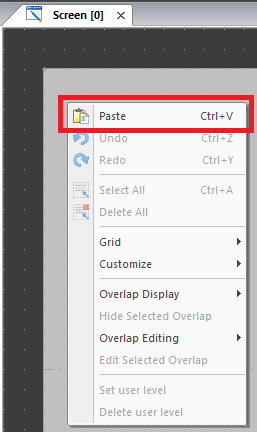
- Click [Paste] in right click menu on the configuration software.
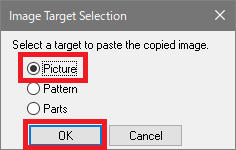
- Select [Picture] in the [Image Target Selection] and click [OK].
Specify the PNG file name in the [Save the image in .PNG file] dialog and click [OK].
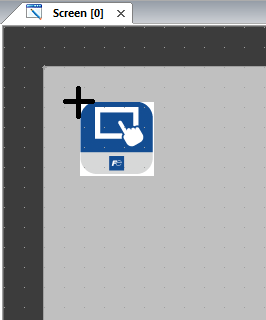
- The copied image appears on the configuration software. Place the image using the mouse.
Imported images are saved in the following directory in *.png format.
- Directory
C:\MONITOUCH\User\Picture
Method 2: Import the specified image file
Supported file format is as follow:
- PNG file (*.png)
- JPEG file (*.jpg/*.jpeg)
- GIF file (*.gif)
- Bitmap file i*.bmpj
Procedure:
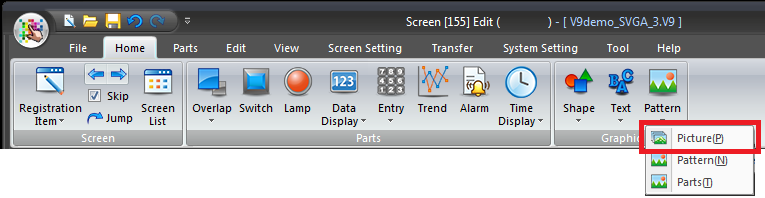
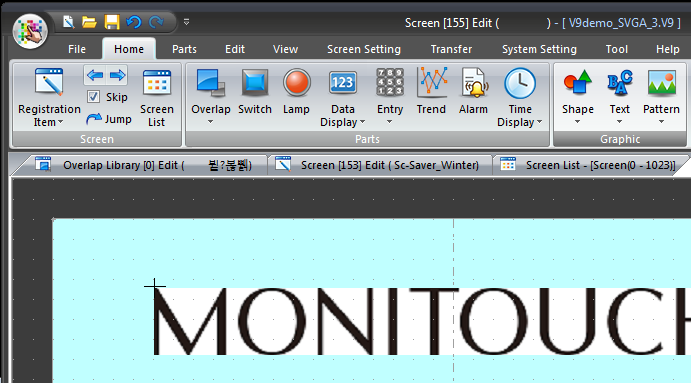
- Go to [Home] or [Parts] > [Pattern] > [Picture].
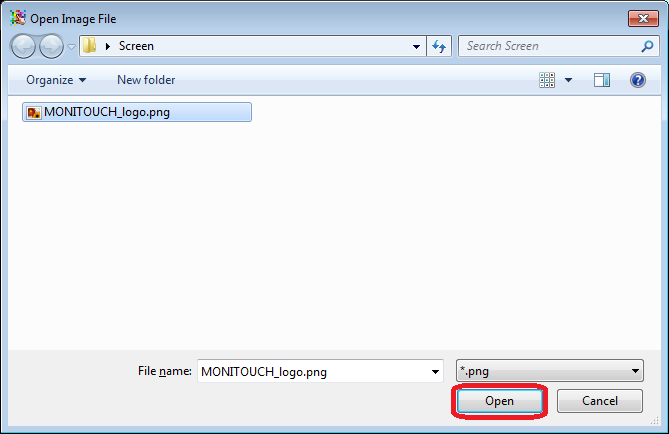
- Select a file to import from [Open Image File] dialog box and click [Open].
- Selected image with a cross cursor appears on the screen. Click to place.
Imported images are saved in the following directory in *.png format.
- Directory
C:\MONITOUCH\User\Picture