
-
Products & Solutions TopProducts & Solutions

-
 Products & Solutions Top
-
Drives & Controls
-
UPS & Industrial Power Supply
-
Sensors & Measurements
-
Energy Management
-
Monitoring & Control System
-
Distributions & Controls
-
Transmission & Distribution
-
Transit System
-
Semiconductors
-
Energy
-
Food and Beverage Distribution
-
Service & Equipment Upgrades
-
Solutions
-
-
IR TopInvestor Relations
- GLOBAL > HMI > V10/V9 series > Questions about > How to read or write data between the temperature controller/inverter and the PLC device memory or internal device memory at regular intervals
How to read or write data between the temperature controller/inverter and the PLC device memory or internal device memory at regular intervals
How to read or write data between the temperature controller/inverter and the PLC device memory or internal device memory at regular intervals
- Category :
Answer
Use the [Device Memory Map] setting.
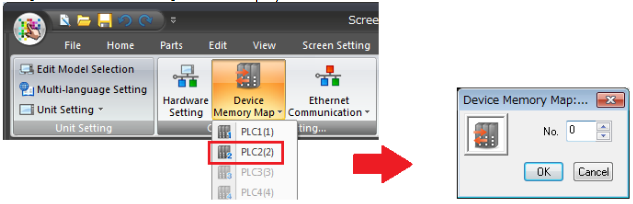
Setting location: [System Setting] -> [Device Memory Map]
[Reading temperature controller/inverter data at regular intervals] (periodic reading)
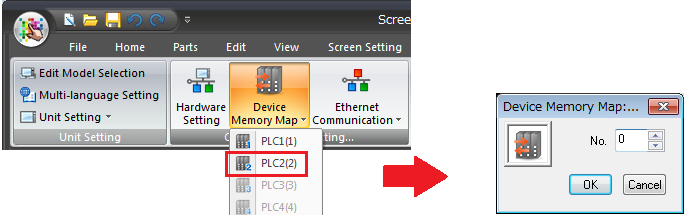
- Click [System Setting] -> [Device Memory Map] -> [PLCn].
The [Transfer Table: PLCn] menu is displayed.
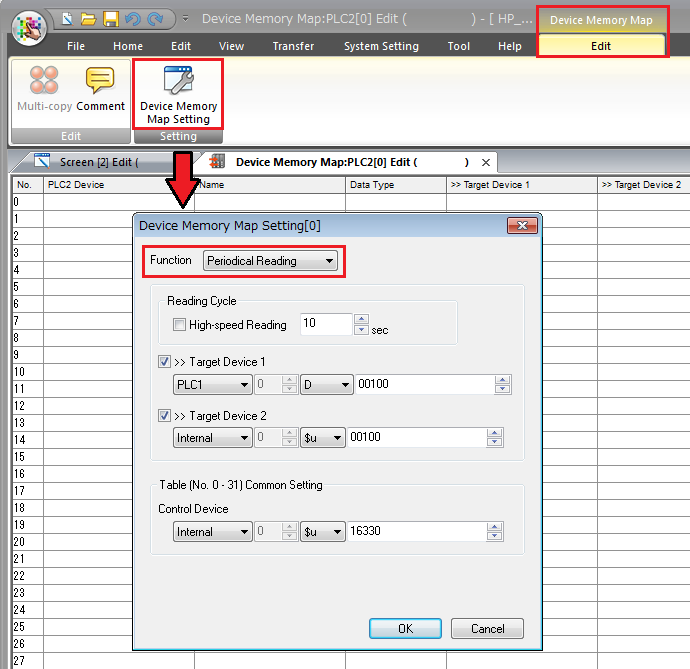
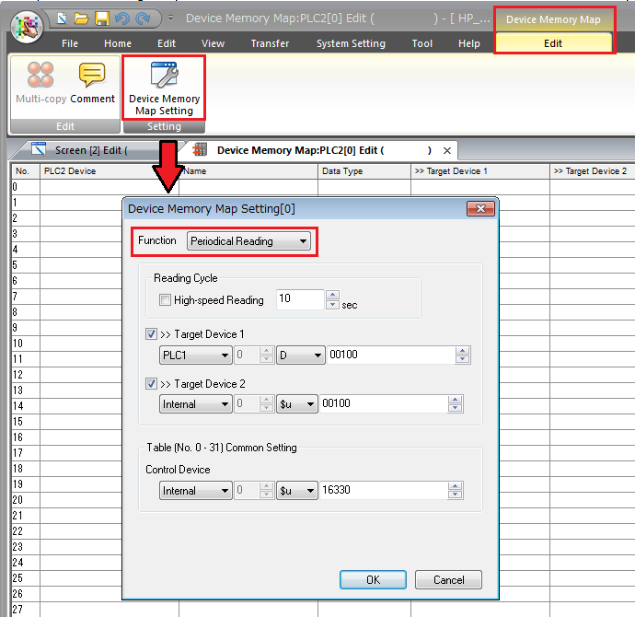
- Click [Edit] -> [Device Memory Map Setting] to display the [Device Memory Map Setting [n]] window.
Set [Function] as [Periodical Reading] and then configure [Reading Cycle] and [Target Device] (PLC or internal device memory).
Example: Transferring temperature controller/inverter data to the PLC or internal device memory every 10 seconds
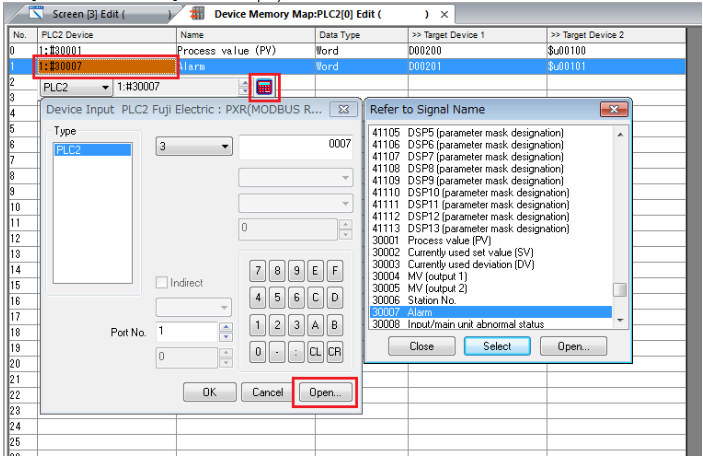
- Double-click on each cell and configure settings.
[Writing temperature controller/inverter data at regular intervals] (periodic writing)
- Click [System Setting] -> [Device Memory Map] -> [PLCn].
The [Transfer Table: PLCn] menu is displayed.
Click [Edit] -> [Device Memory Map Setting] to display the [Device Memory Map Setting [n]] window.
Set [Function] as [Periodical Writing] and then configure [Writing Cycle] and [Source Device] (PLC or internal device memory).
Example: Transferring data in PLC device memory to a temperature controller/inverter every 10 seconds
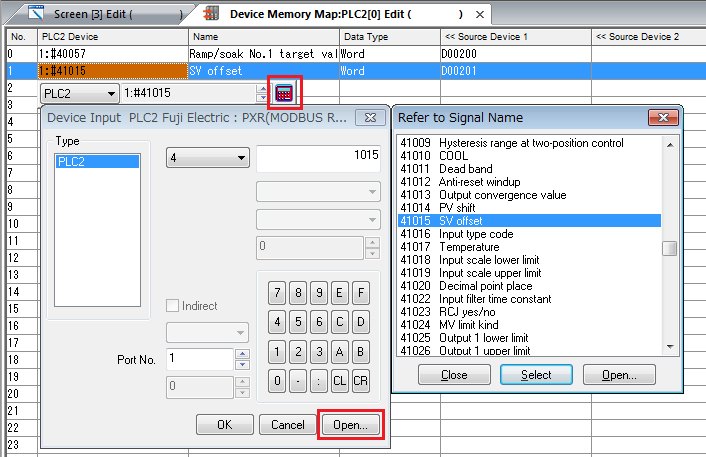
- Double-click on each cell and configure settings.