


-
Products & Solutions TopProducts & Solutions

-
 Products & Solutions Top
-
Drives & Controls
-
UPS & Industrial Power Supply
-
Sensors & Measurements
-
Energy Management
-
Monitoring & Control System
-
Distributions & Controls
-
Transmission & Distribution
-
Transit System
-
Semiconductors
-
Energy
-
Food and Beverage Distribution
-
Service & Equipment Upgrades
-
Solutions
-
-
IR TopInvestor Relations
- GLOBAL > HMI > V10/V9 series > Questions about > How to change-over the screen according to a PLC (external) command
How to change-over the screen according to a PLC (external) command
How to change-over the screen according to a PLC (external) command
- Category :
Answer
Use [Displaying Screen Device].
* For V8-compatible screen programs, use [Read Area].
- Check the [Displaying Screen Device] setting located at [System Setting] → [Hardware Setting] → [Control Area] in the screen program.
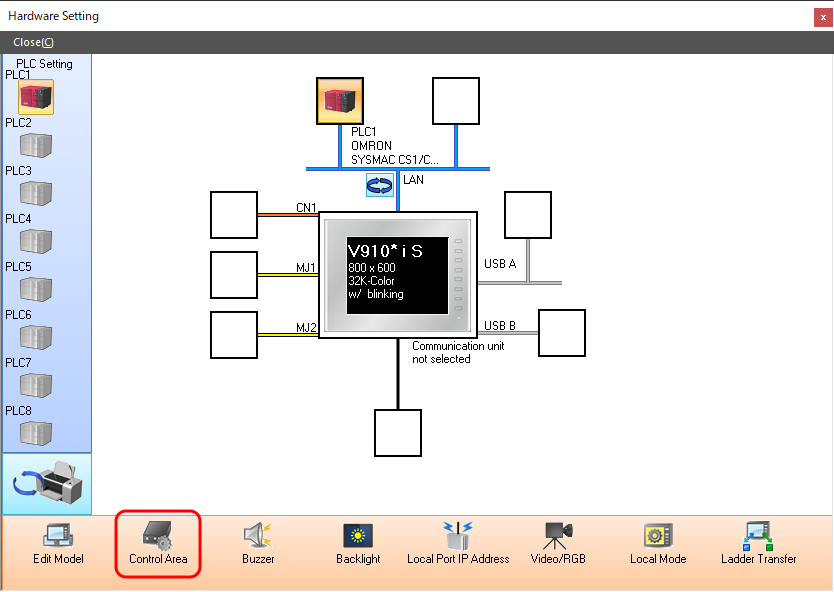
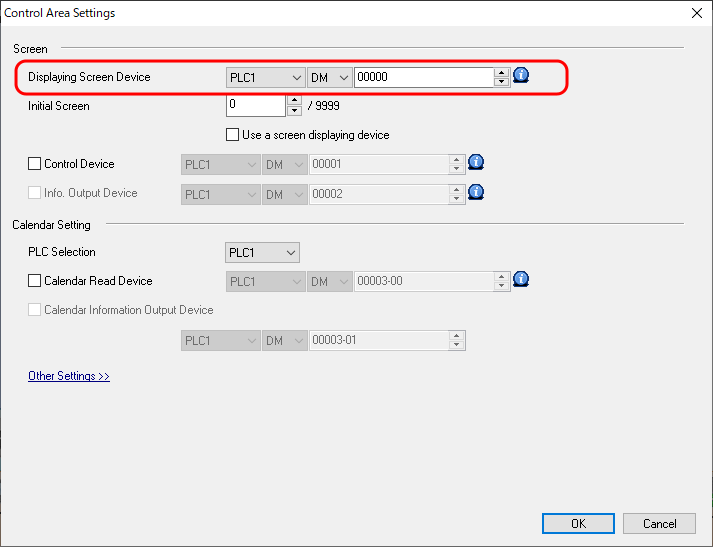
- Set the screen number to [Displaying Screen Device].
[Displaying Screen Device]
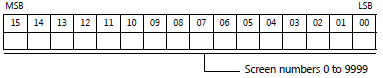
This will change the screen to the set screen number.
If the [Control Area] menu is absent from the hardware settings
[Control Area] is not used for screen programs converted from V8 series and earlier models. In this case, change screens using [Read Area].
[Read Area] setting location
[System Setting] → [Hardware Setting] → [Read/Write Area] → [Read Area]
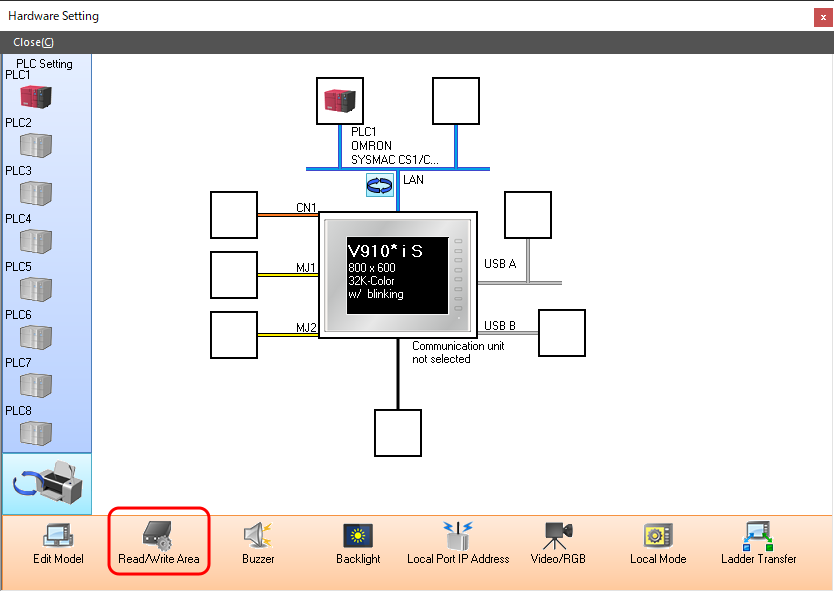
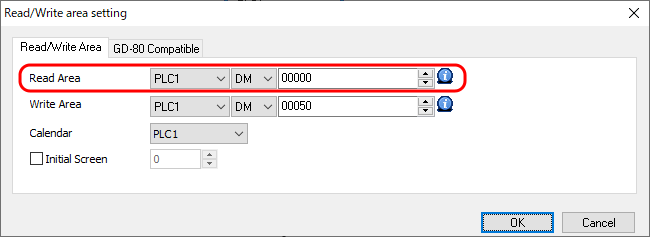
Command method for changing screens
Set the screen number of the target screen to "n+2" in [Read Area] and then turn ON the "n+1-14" bit in [Read Area].
For the example in the above figure
D00002 = 10 Set the target screen number to 10.
D00001-14 bit ON Turn on the change trigger.